Register Standalone and Cloud (Network) License
Before you start with the Devotech iDAS registration, make sure the product was successfully installed. You can find more details in the chapter: Test if iDAS was installed successfully**.**
Make sure that you click on I Agree in the Devotech Privacy Statement window that appears on the screen during Civil 3D start-up. If you closed the window by accident, restart Civil 3D. If the window does not appear, it means that you agreed to the privacy statement before:
- Once Civil 3D is fully loaded, go to the Devotech iDAS ribbon and click on the Register command to open the Devotech iDAS License Manager:
Location on Compact Ribbon:
Location on Extended Ribbon:
-
Fill in your username and password then click on the Login button. If you do not have your username and password, then contact activations@devotechgroup.com.
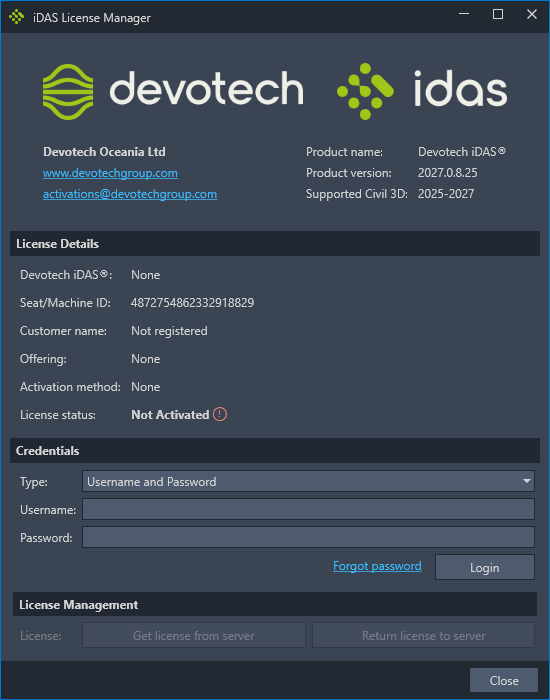
-
If you fail to login then it means that you either do not have a license, or a license was not assigned to your account.
If you have not purchased a license, either visit the Devotech website to request a license or click on the activations email in the dialog and request a license via email.
If you already purchased a license contact Devotech activations at activations@devotechgroup.com to assign the license to your account.