Networks CommandDifficultyintermediateAdded2027.0StatusdraftImport 12D Network
Description:
Creates a network from a 12DA (or 12DAZ) file containing drainage and super strings.
Location on Compact Ribbon:
Location on Extended Ribbon:
Instructions:
-
-
Run the command.
-
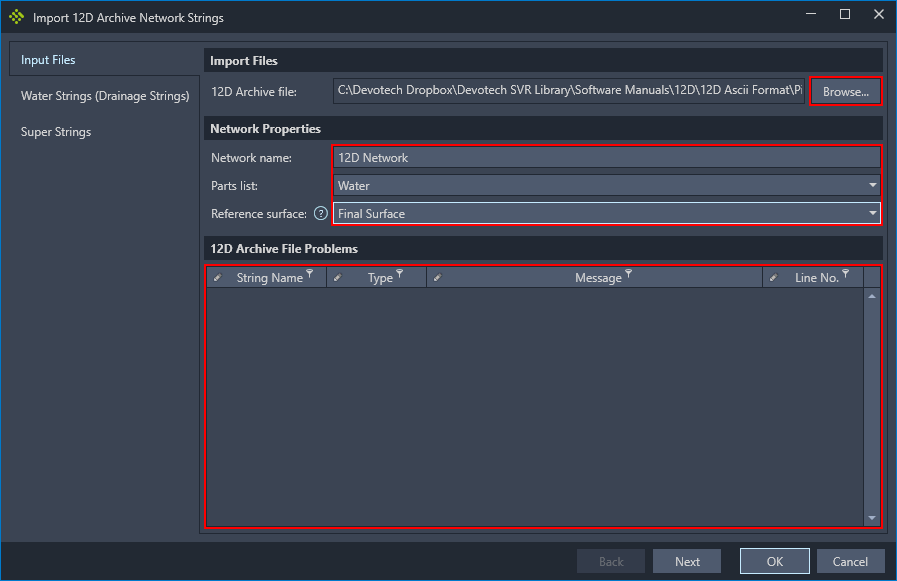
On the Input Files tab click the Browse… button and select a 12DA or 12DAZ file. Next provide a network name, parts list and reference surface. If there are any problems with the import file then the problems will be listed in the table.
-
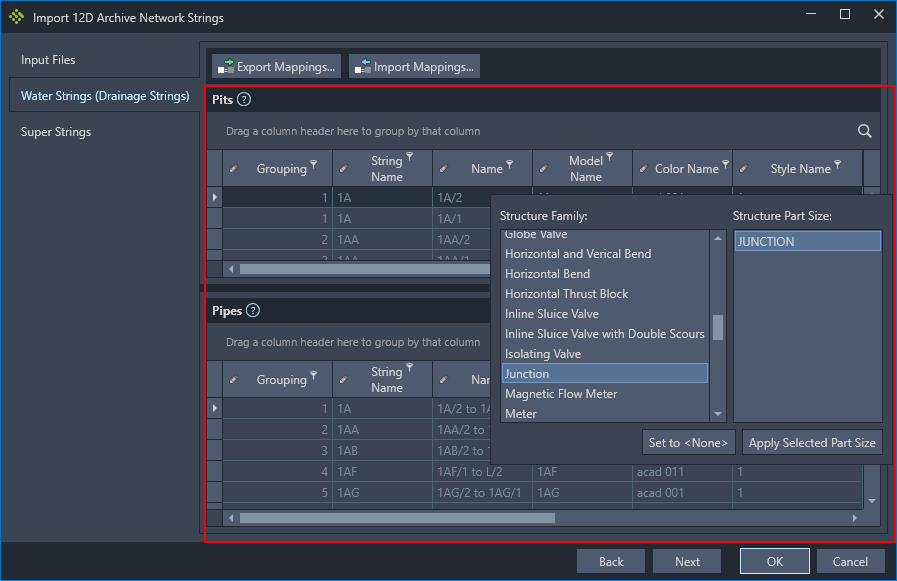
Depending on the contents of the input file either the Water Strings tab, Super Strings tab or both tabs will be populated with strings from the file. In either of the tabs the structure and pipe tables can be filtered or columns grouped to refine how the strings are displayed. For each string that is to be imported, right-click on the appropriate row and select either a structure or pipe from the menu. Once all the strings, that need to be imported, are assigned pipe and structure part sizes, click the OK button to perform the import.
-
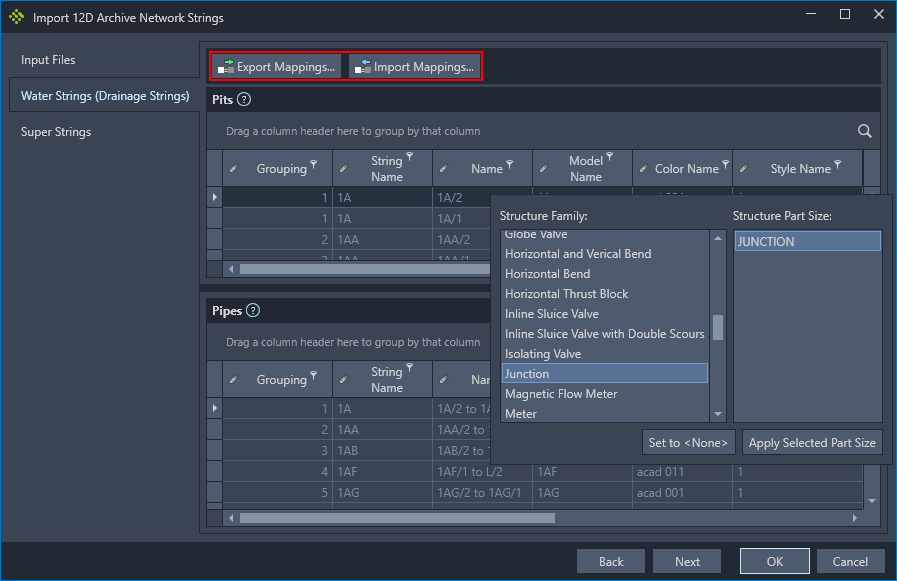
If an import is to be performed multiple times the mappings that were applied to each of the strings can be saved to a file. That file can then be imported during the next import to restore the mappings. Click on the Export Mappings… button to save the mappings to a file, and click on the Import Mappings… button to load the mappings from file.
-