From Section View CommandDifficultyintermediateAdded2027.0StatusdraftPoint from Section Command
Description:
Projects points from the cross-sections to the plan. The points are either indicated by the user or from a selected polyline. This command has multiple applications e.g. for road rehabilitation where survey of the existing road was done with the laser surveying and the road centerline is not defined in the plan view. See the steps below for the workflow on how to define a centerline from the cross-sections:
Location on Compact Ribbon:
Location on Extended Ribbon:
Instructions:
The example below describes the workflow for road rehabilitation project to trace the existing horizontal and vertical alignment.
-
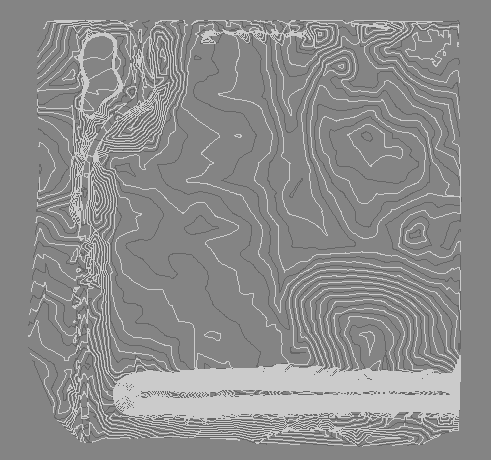
Create a surface from survey data:
-
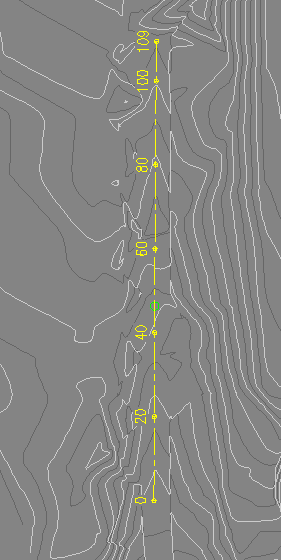
Draw an alignment close to road centerline:
-
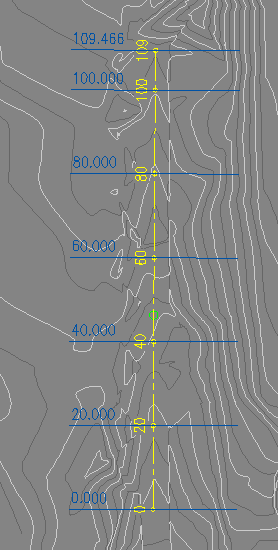
Create sample lines:
-
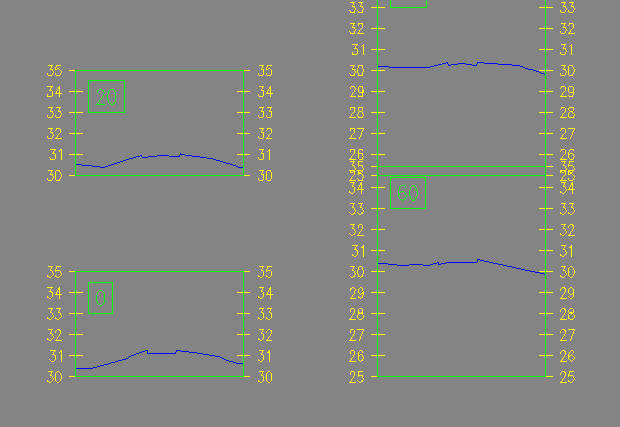
Create section views (cross-sections):
-
Run the command.
-
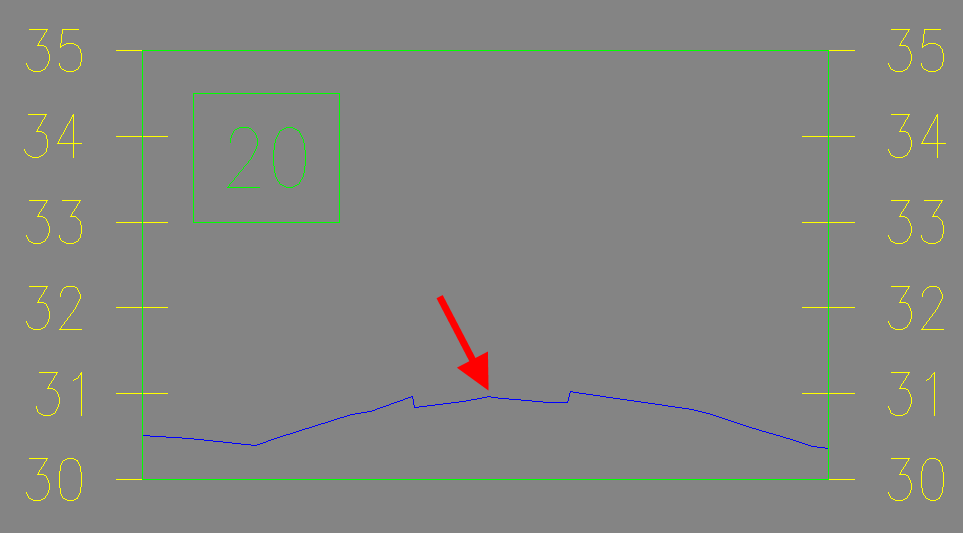
Click on the location in the cross-section where the centreline should be:
-
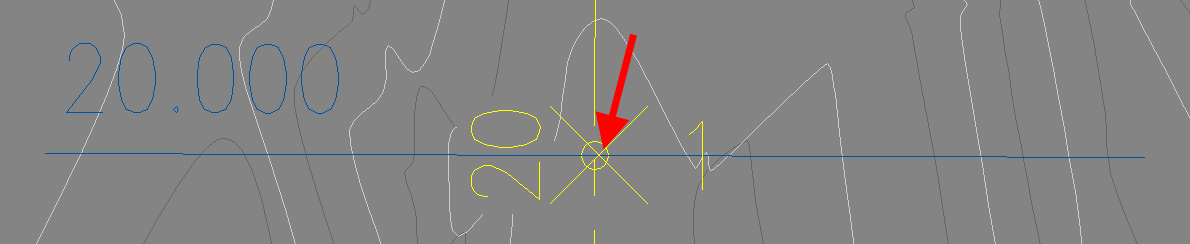
Go to plan and the COGO point will be created at the centreline location:
-
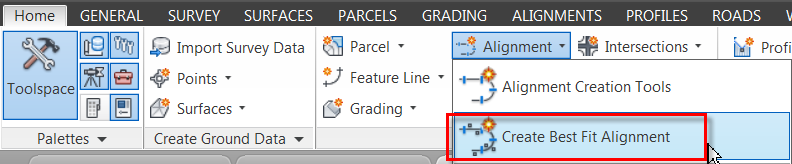
Once all the points are created you can use the Create Best Fit Alignment command to create the horizontal alignment:
-
The created COGO points can be projected onto a longsection and used for the best fit vertical alignment design. To project an object to a profile view, select the profile view and click on the Project Objects to Profile View command in the contextual ribbon (ribbon related to the selected object). Then select the COGO points in the plan and press Enter.

COGO point projected to profile view:

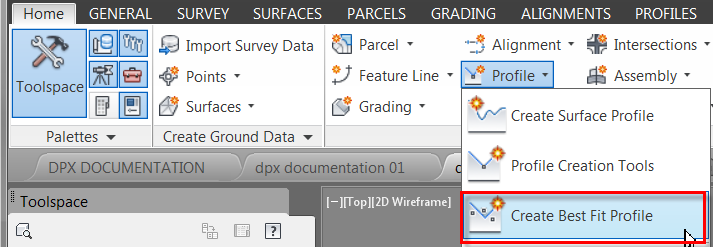
The Create Best Fit Profile command: