Structures
Move Structure Command
Description:
Moves a structure in the profile view. This is very useful for networks where the position of manholes is driven by the vertical alignment profile.
Location on Compact Ribbon:
Location on Extended Ribbon:
Instructions:
-
-
-
- Run the command.
-
-
- Select the profile view.
- Select the structure to move.
- Specify the insertion point.
Before:
After:
Delete Structure Command
Description:
Deletes structures in a profile view.
Location on Compact Ribbon:
Location on Extended Ribbon:
Instructions:
Run the command and select the structure in the profile view to be deleted:
Before:
After:
Always check the plan view after performing this command, if there was a change in the horizontal direction the alignment needs to be adjusted (use the Edit Alignment Geometry command):
Insert Structure Command
Description:
Inserts a structure in the profile view. This is very useful for water pipe systems where air valves must be added to the high points of the longsection and scour valves to the low points.
Location on Compact Ribbon:
Location on Extended Ribbon:
Instructions:
-
-
-
- Run the command.
-
-
-
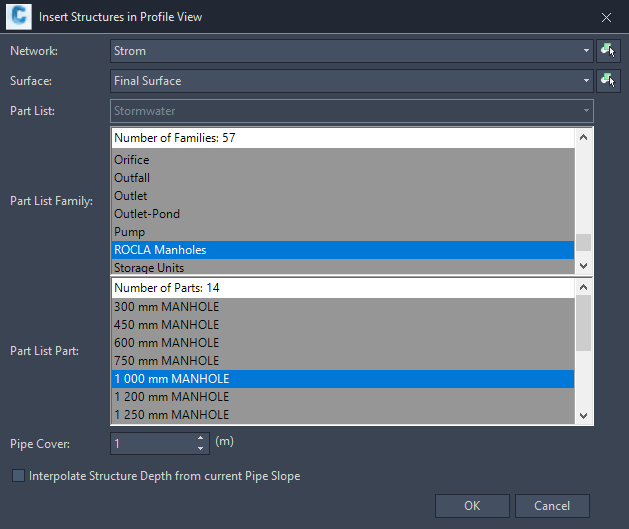
Specify the Network, Surface, Structure, Depth below NGL and click OK:
-
Specify the insertion point in the profile view:
Before:
After:
Swap Structures Command
Description:
Swaps multiple structures at the same time. The default Autodesk Civil 3D command only swaps one structure at a time. Structures can be selected either in the plan or profile view.
Location on Compact Ribbon:
Location on Extended Ribbon:
Instructions:
This command is the same as the Swap Parts Command except the dialog layout is configured for swapping structures instead of swapping pipes and structures.
Edit Structure Command
Description:
Allows users to modify structure parameters like the Rim Elevation, Structure Depth, Sump Elevation, Sump depth and User Defined Fields.
Location on Compact Ribbon:
Location on Extended Ribbon:
Instructions:
-
Run the command.
-
Specify the structure properties in the Information tab:
-
Modify the user defined fields in the User Defined Fields tab:
Set Structure Invert Command
Description:
Set a structure's invert level from the command line, instead of opening each structure's Properties window to adjust the structure invert. There is also an option to choose whether the connected pipes' invert levels should match the structure invert or not.
Location on Compact Ribbon:
Location on Extended Ribbon:
Instructions:
-
Run the command.
-
To specify whether the pipes should match the new structure invert, click on Pipes in the command line:
-
Choose the desired option and select the structure:
Note: Civil 3D does not allow having a pipe invert below the structure invert, if the structure invert is moved above the pipe invert the pipe is adjusted regardless the settings used.
- Specify the new structure invert elevation:
Rotate Structures Command
Description:
Rotates the structures by at a specified angle. The angle can either be an absolute value or relative to the structure's connected pipes. It is suitable for structures which must be aligned with other objects, e.g. inlets must be aligned with the road edges, or for structures that must be rotated relative to a pipe, e.g. headwalls, outfalls, etc. The structures can be rotated individually using grip points, but it is time-consuming process.
Location on Compact Ribbon:
Location on Extended Ribbon:
Instructions:
Absolute Angle:
- To rotate multiple structures with a specific angle, measure the angle first and then run the command.
- Select the structures, choose the Absolute option**,** and then specify a rotation angle. The rotation angle is always measured from the horizontal line in a counter-clockwise direction, not from the structure rotation angle.
The rotated structure:
Relative to Pipe:
- To rotate multiple structures relative to their connected pipes run the command.
- Select the structures, choose the Relative option**,** and then specify a rotation angle. The rotation angle is always measured clockwise from the direction of the pipe.
Note that if the structure is connected to two pipes the average angle is used. If the structure is connected to three or more pipes then it will not be rotated and an error message will be displayed at the command line.
Swap Structures to AV or SV Command
Description:
Swap structures that are at high and low points. This allows the user to quickly swap structures at high points to air valves and swap structures at low points to scour valves.
Location on Compact Ribbon:
Location on Extended Ribbon:
Instructions:
-
Run the command.
-
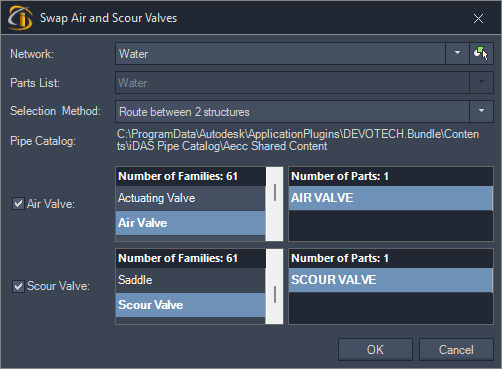
Specify the air and scour valve parts:
 \
\ -
Depending on the Selection Method the following prompts will be presented to you:


