Surface Size (Civil 3D performance)
The number of points used for the surface definition has a direct impact on Civil 3D's performance. Up to one million points can be used with no significant impact, when the drawing contains more points a performance degradation can be experienced.
There are a few options available to decrease the surface size:
-
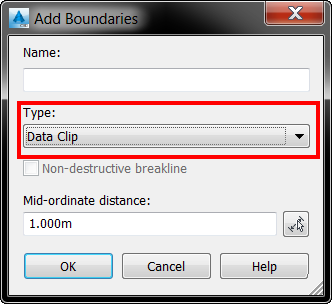
Add a data clip boundary for surfaces created from point files to only read points inside the boundary which covers the area of interest:
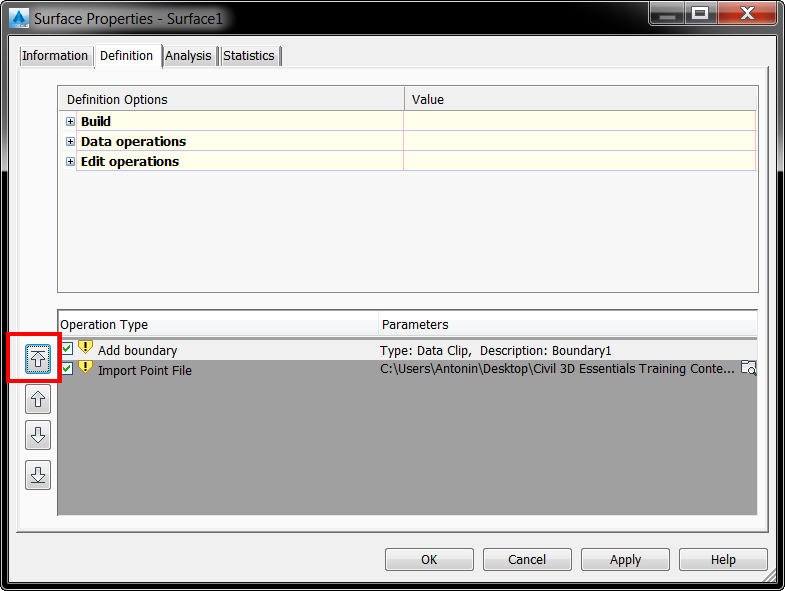
The data clip boundary must be added before you add point files into the surface definition. If you added the data clip boundary afterward, you can change the Operation Type order in the surface's definition (use arrows to move operations up or down, Add boundary must be at the top):
-
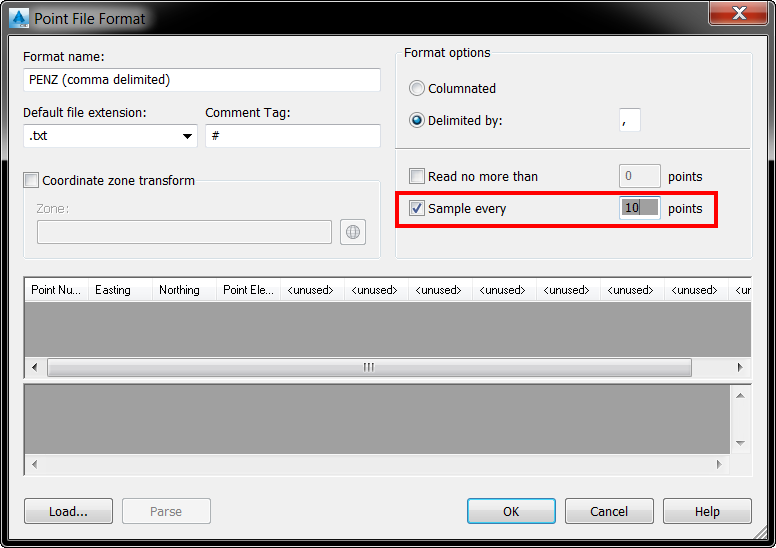
Read only every xth point, e.g. every 2nd or 10th. This is suitable for LIDAR data where the distance between points are way too short for infrastructure projects requirements. This can be specified in the point file format which will be used for point file import:
-
Split the surface into multiple surfaces covering the area for each corridor section.
-
Use two surfaces, one for the design which runs along the design area, and another one for plan production, which covers a larger area.
Large surfaces also increase the drawing size therefore it is practical to use Data Shortcuts. When you reference a surface into another drawing, you can specify whether you want to create a Reference Only or Geometry Stored in Drawing. The second option imports the source geometry, the destination drawing size will be the same as the source drawing size which partially defeats the usage of Data Shortcuts. This functionality is available from the Civil 3D 2017 version onwards. Select Surfaces in the Prospector and change the Data Reference Status in the table view as shown below:
Best practice is to set the surface style to No Display or Border when saving a drawing. This will decrease the actual size of the drawing and it should also reduce the opening time of a drawing when working with large surfaces.